


Website
The CMREN website is built within Wix and is one of the main touchpoints for Central Michigan Recovery and Education Network’s main audience
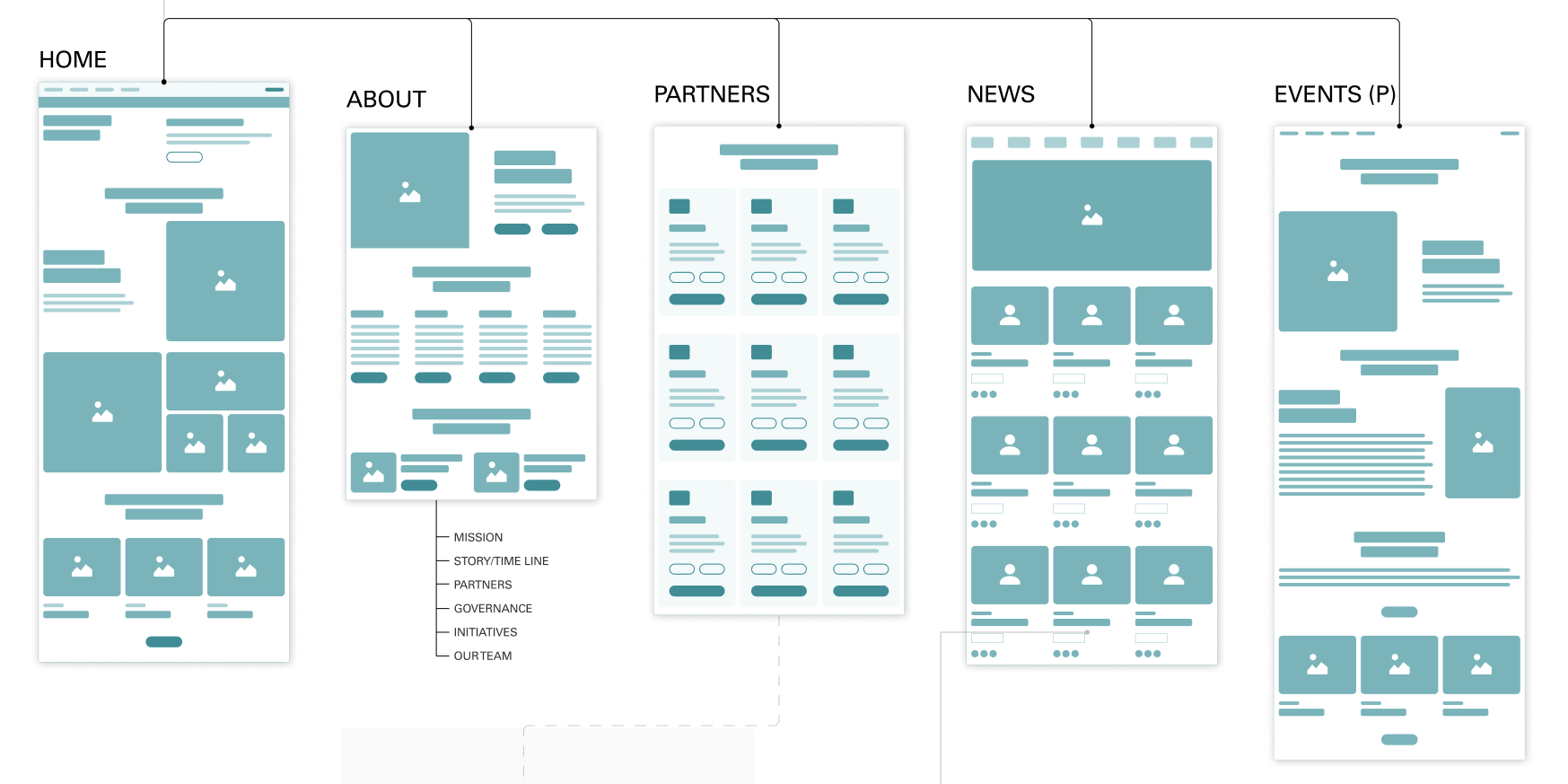
Different page types serve different purposes, but should maintain the same visual consistency across the website.
Visit Website →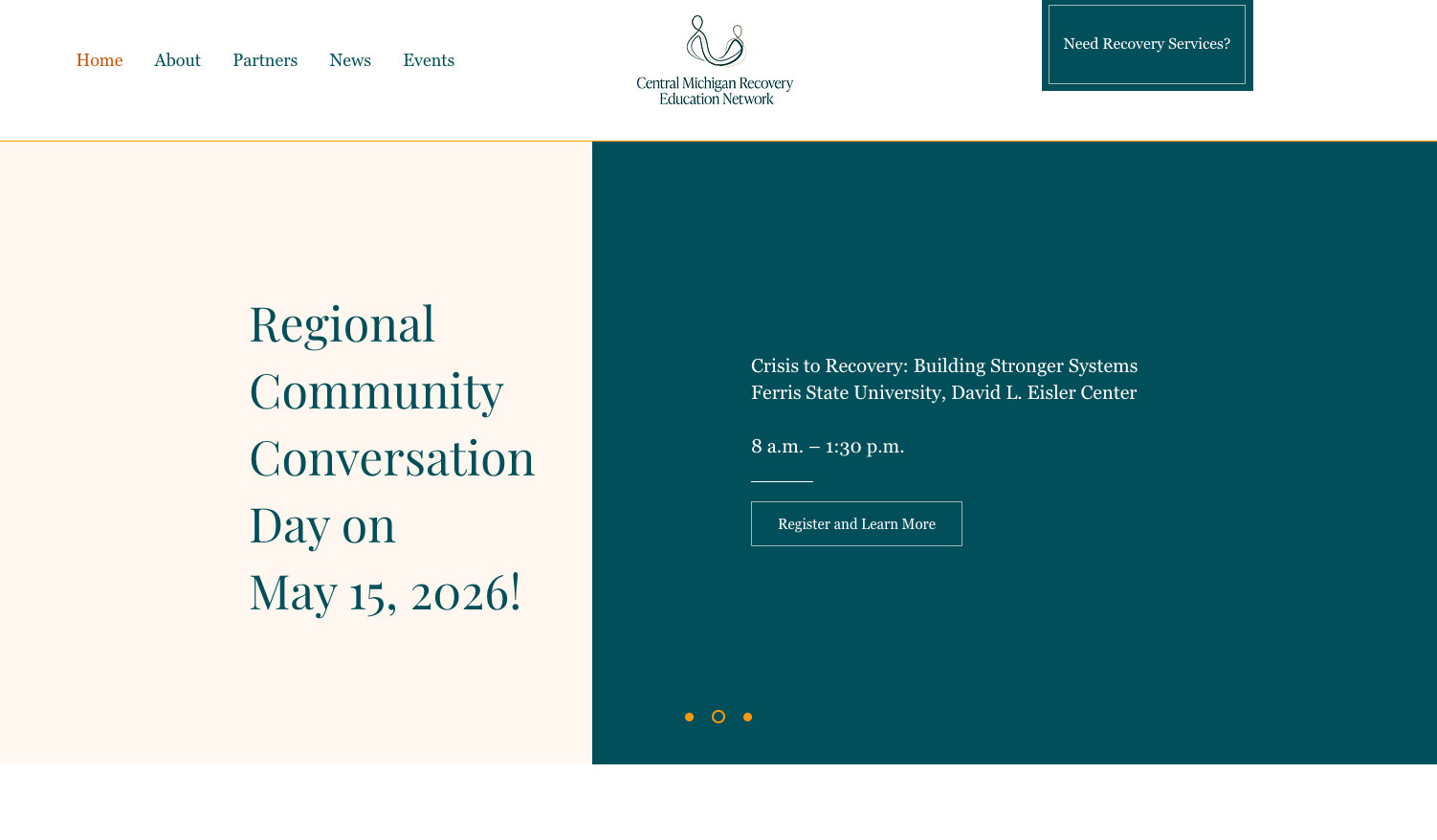
Navigation
Website Grid
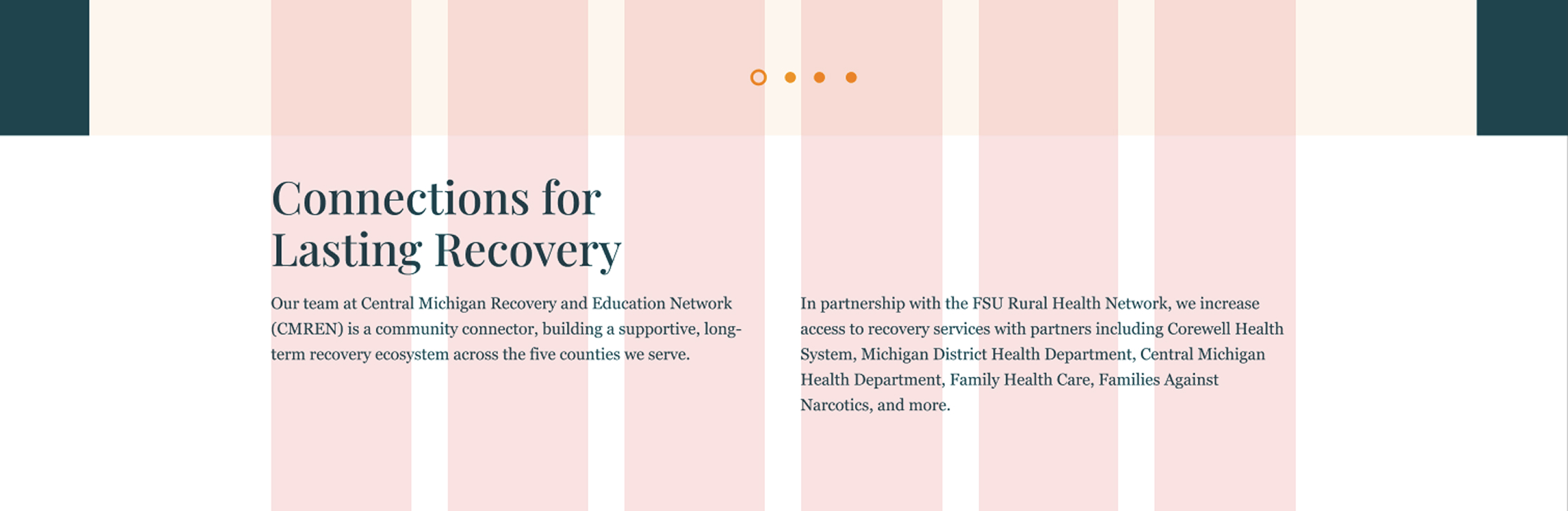
The CMREN website uses a 6-column layout. Sections may use 3 columns for sections such as text and an image, but buttons should only be the width of 1–2 columns.
Components
Slideshow
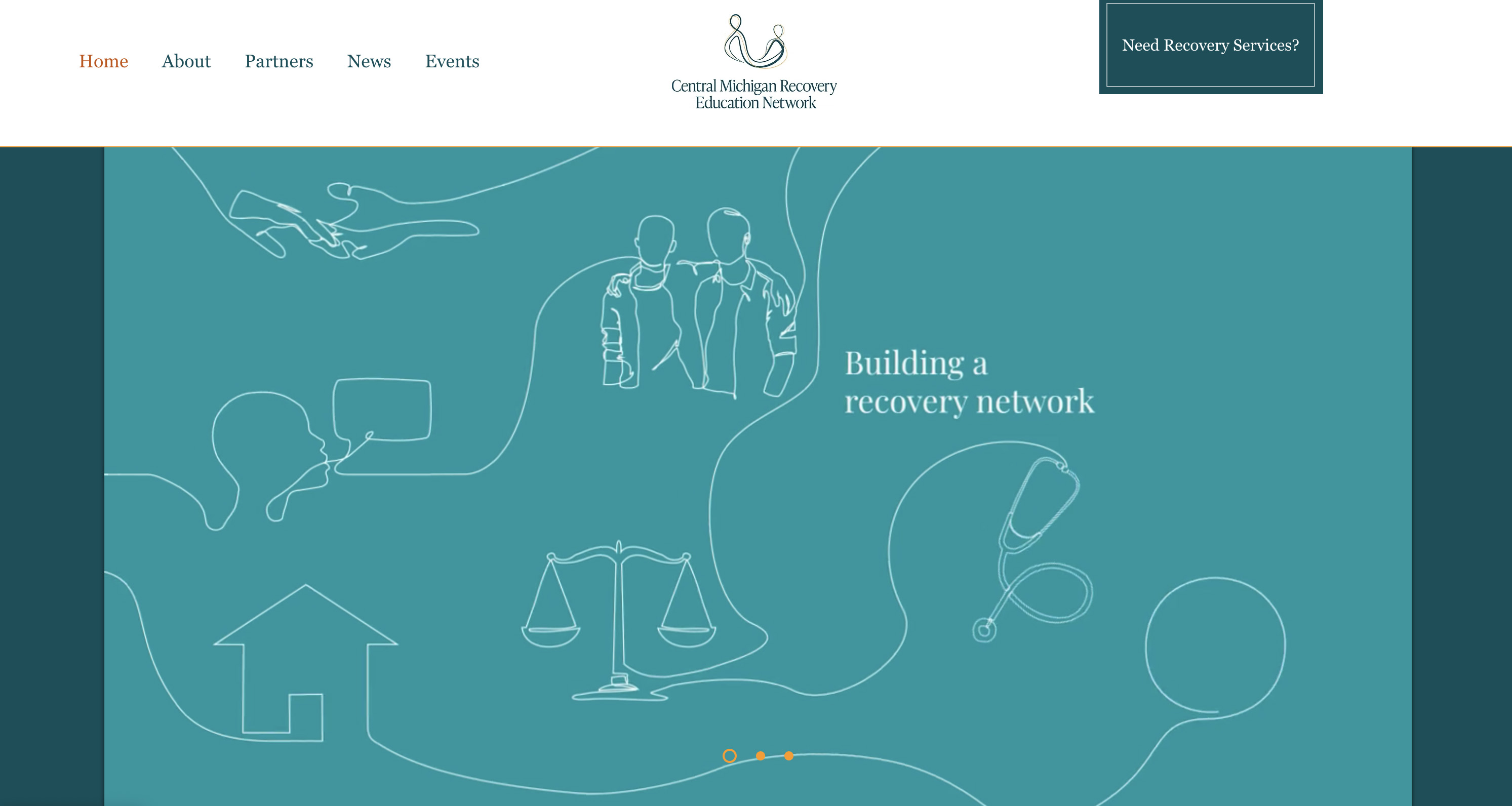
The top of the home page features an autoplaying slideshow, showcasing the recovery network animation and highlighting other events.
Introduction
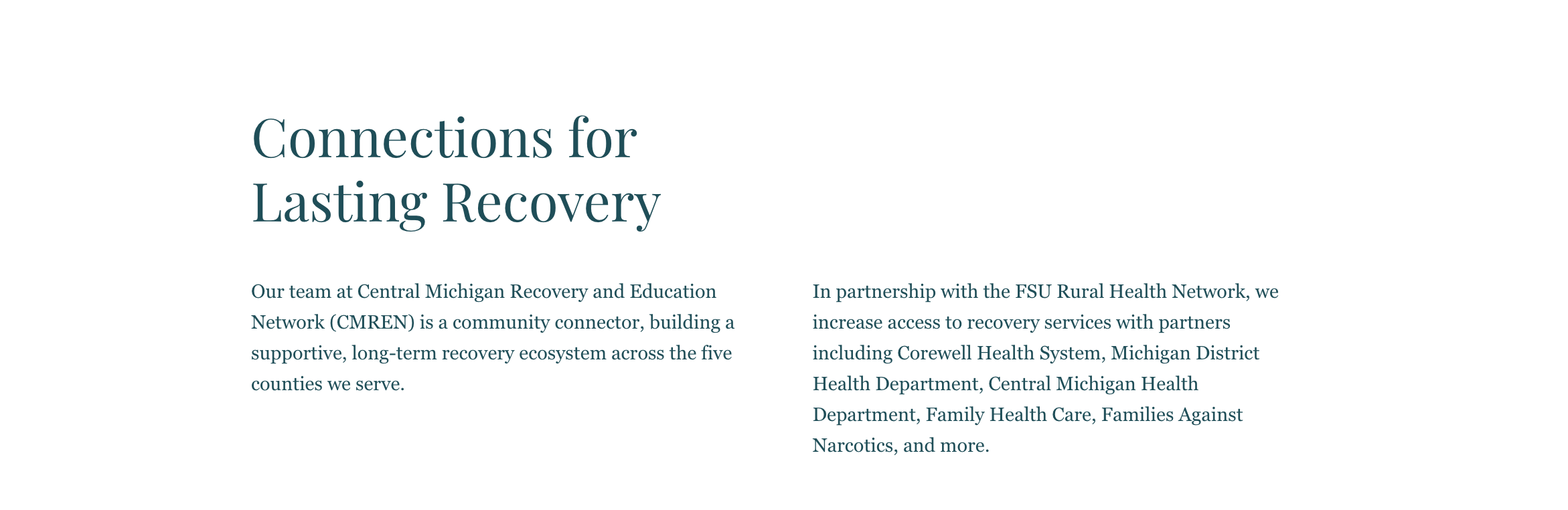
For the home page introduction, use a two column format to reduce the long length of the text and to keep it visually balanced.
Three Cards
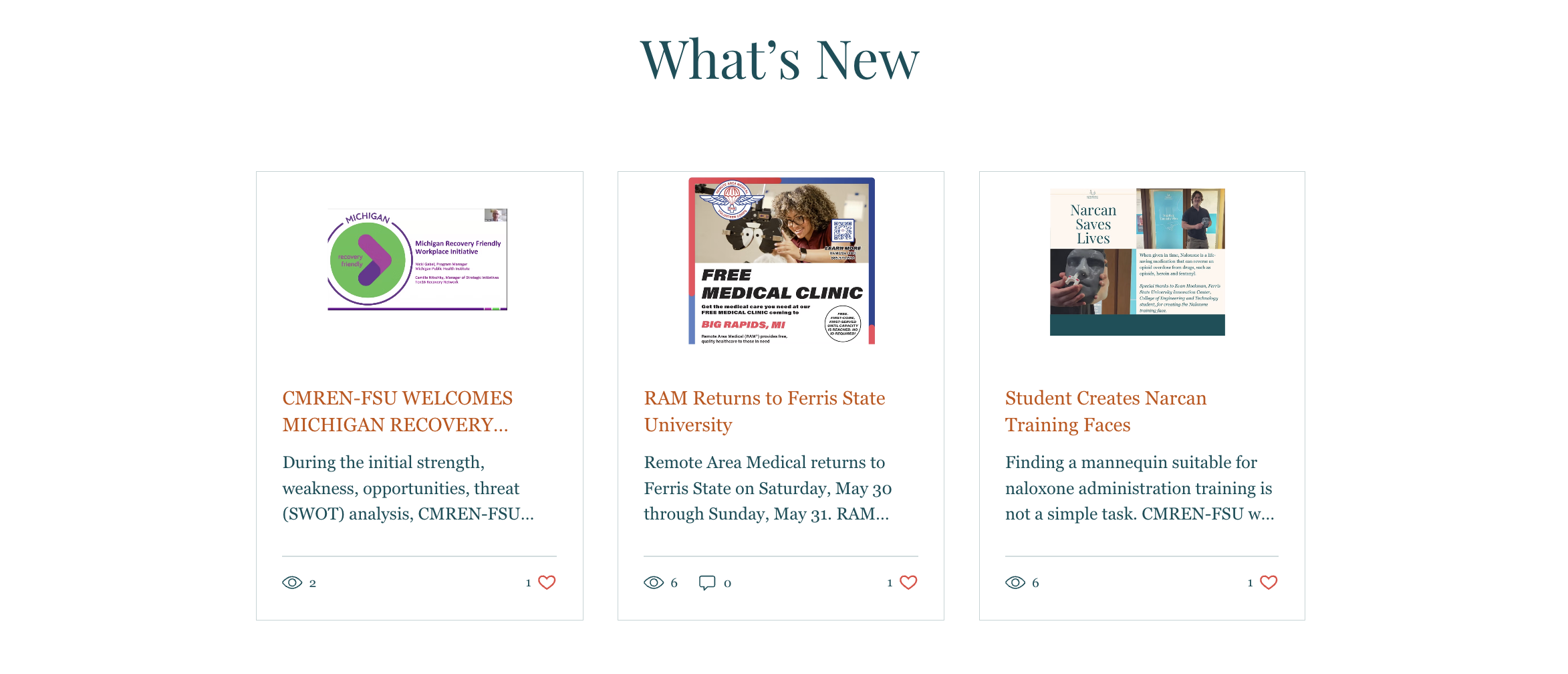
Using the three card format, you can share "what's new", and any other list of items grouped with tags on Wix. The button below the cards will jump to the news page of the website.
Newsletter
The newsletter section acts similar to the banners with a color backdrop with an image. This format can be used elsewhere with the same formatting.

Buttons
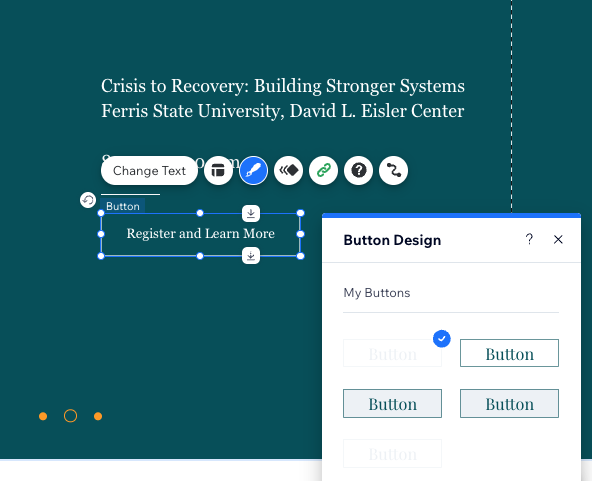
Various button styles will be utilized for hierarchy and different background colors. All of these can be found under “My Buttons.”
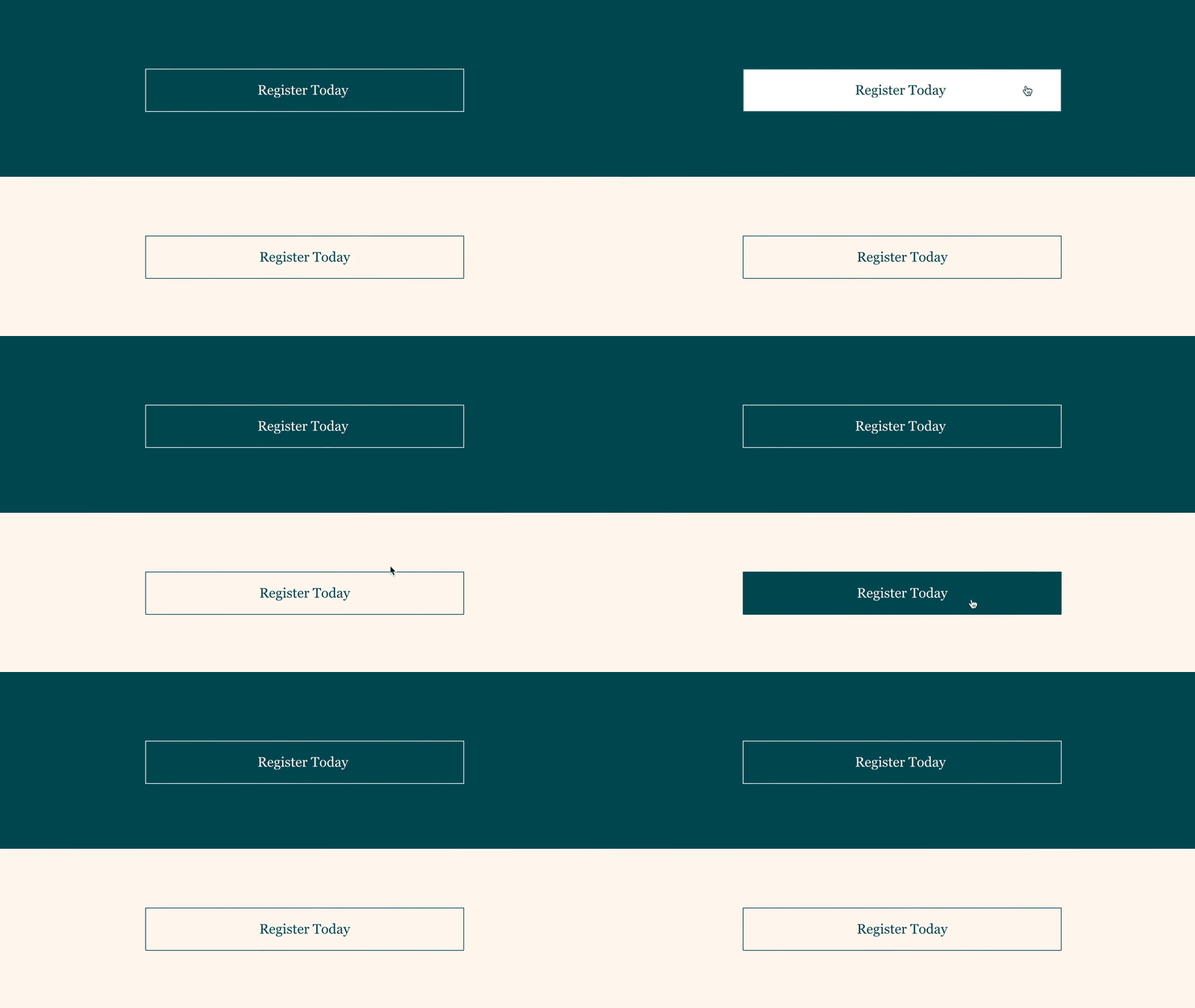
Banner Types
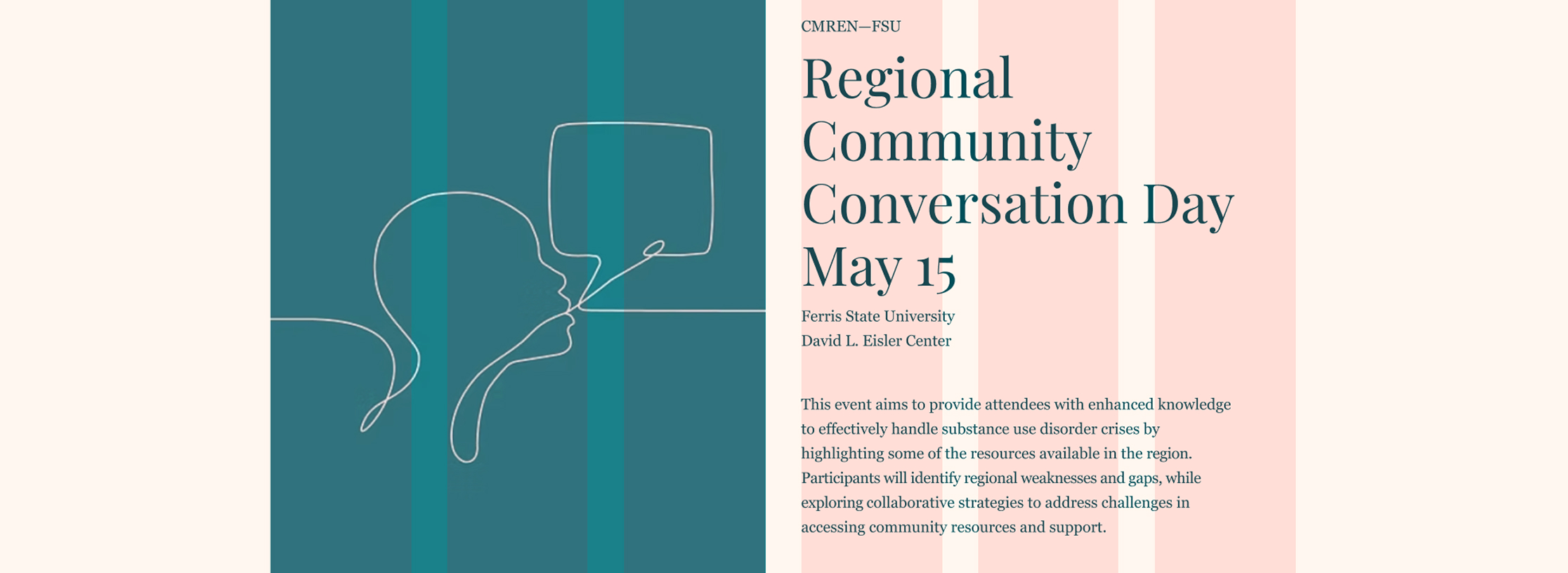
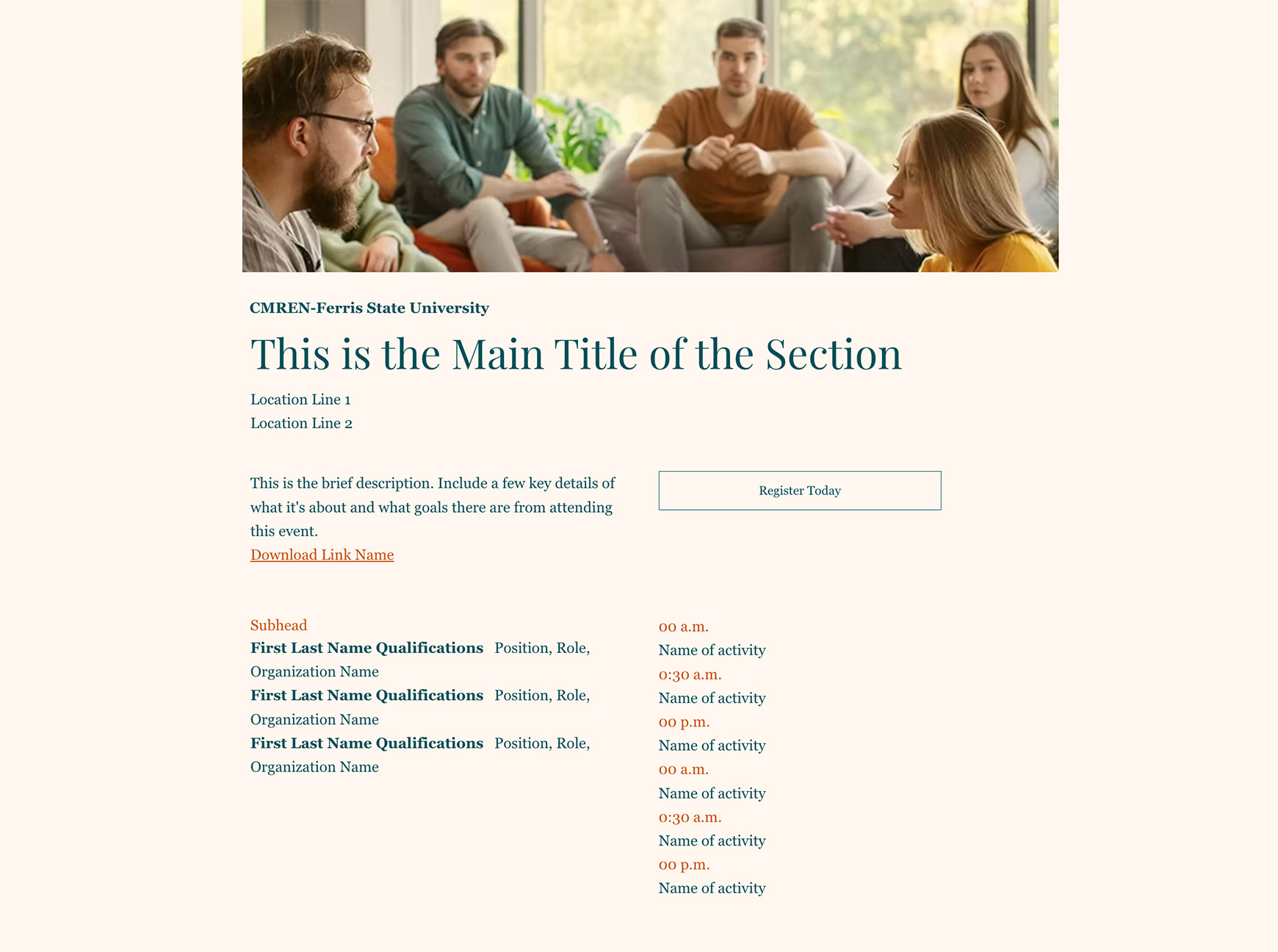
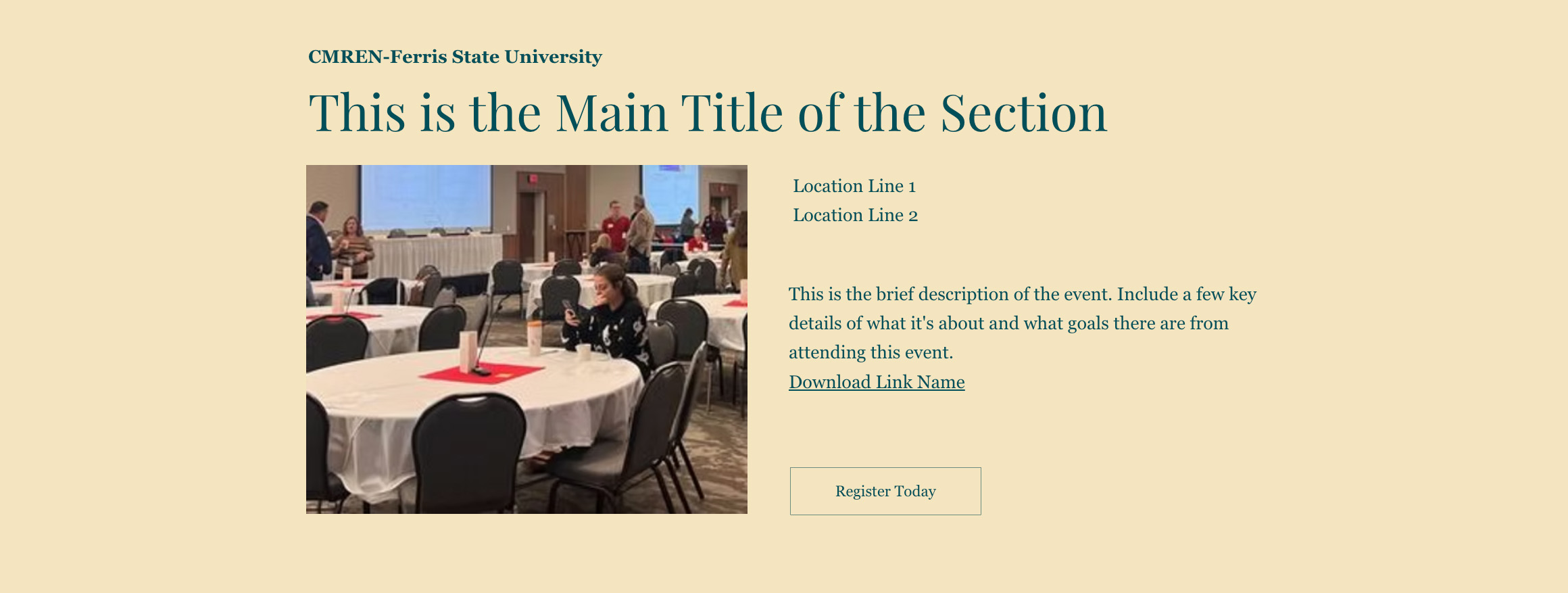
These components are used for promoting events but can also be used on different sections of the website. These can be found on the hidden templates page on Wix to easily copy and paste from.
There are three variations for different uses:

News Placeholder Graphics
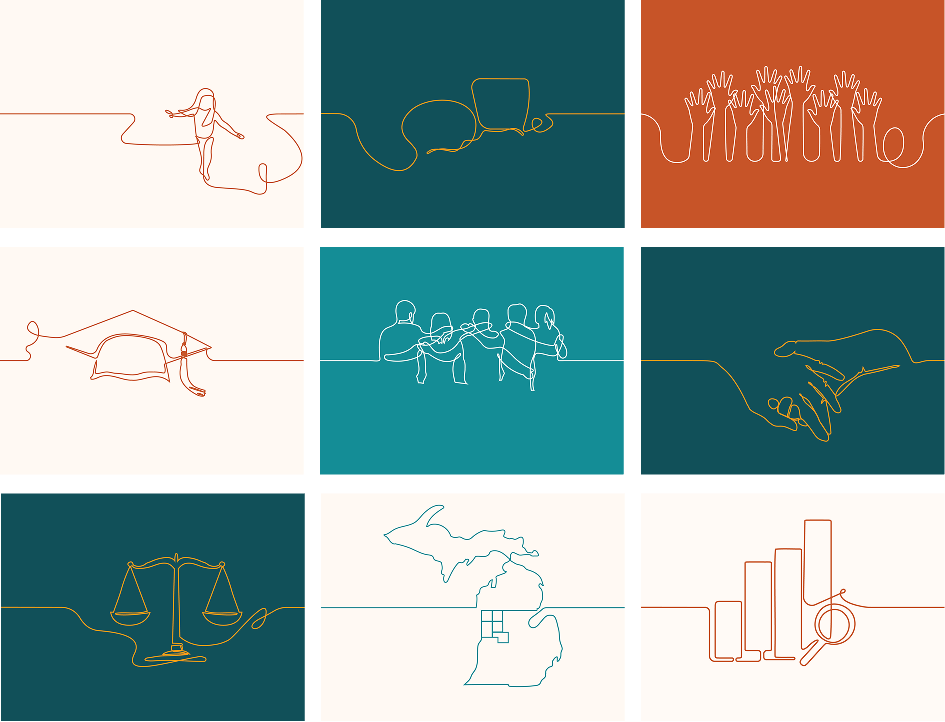
On cmren.org/news, if photography is unavailable or poor quality for news posts, use placeholder images. These placeholders serve as neutral stand-ins that do not distract from surrounding content.
Using Tags
To add a news tag, click on the News module, then go to Settings and select Manage Content. On the left-hand side, you’ll see a sidebar with options for Tags and Categories.
Note: Tags will only appear on the News page if a post is assigned to it.
Making a News Post
To add a post, click on the News module, then select Manage Posts. Click the blue Create a New Post button to open a new post draft.
As you add content, you can assign the post a category and/or tags; one post can have multiple of each.
Once your post is complete, be sure to click Publish to make it visible to the public.
Updating Partners
The partners list is part of a Global Section, meaning any changes will appear across all where it's used. To update the list you have to click on the module, select Manage Items, and then click Duplicate Item. From there you can change the logo and edit the content.
Note: Be sure to update all associated links including: the logo link (should point to the partner’s website) directions, and phone number.